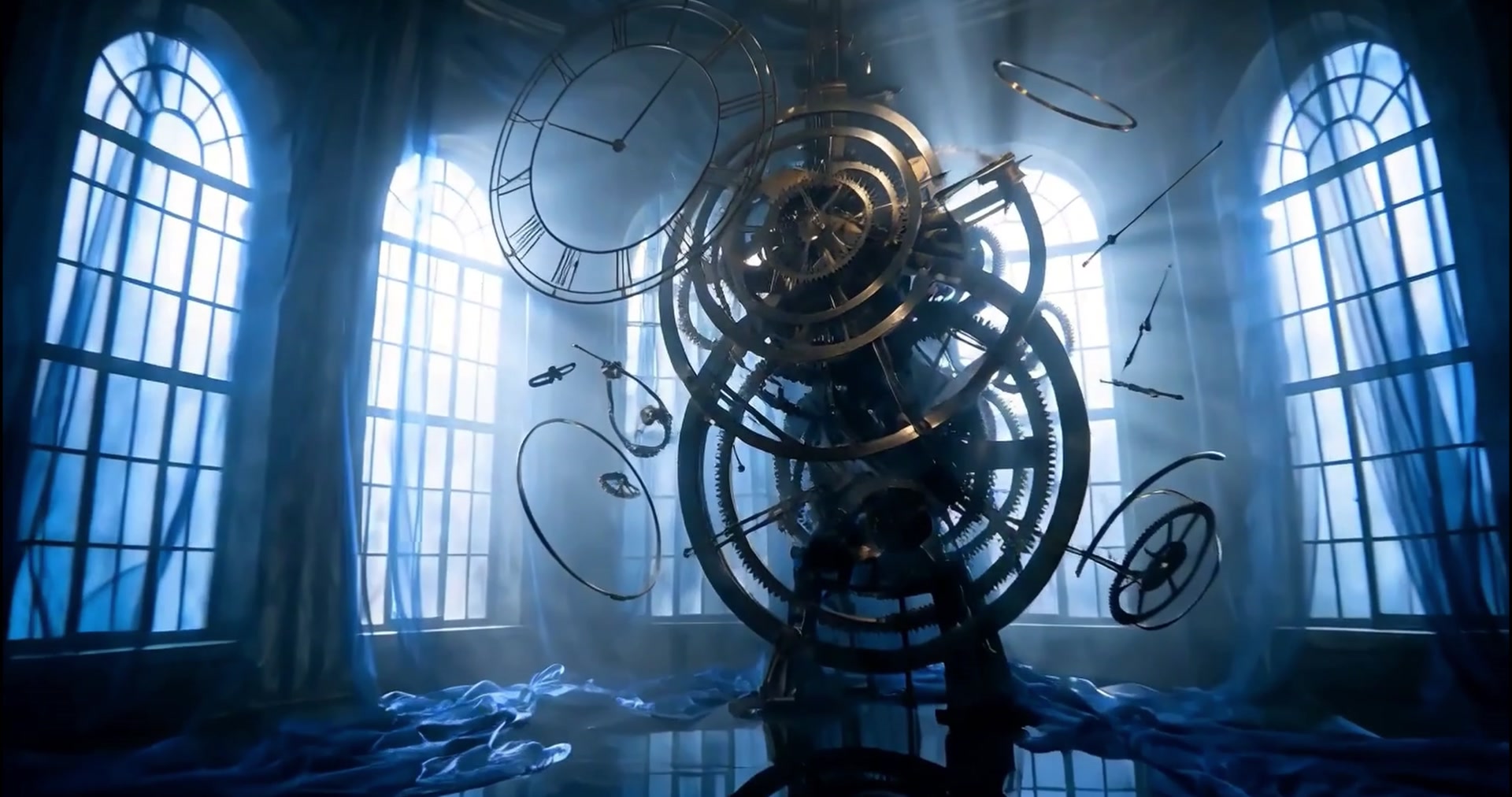
 A NEW DIRECTION
Generate
Explore a new take from your selected clip and a prompt, with KroxMedia’s connected AI models.

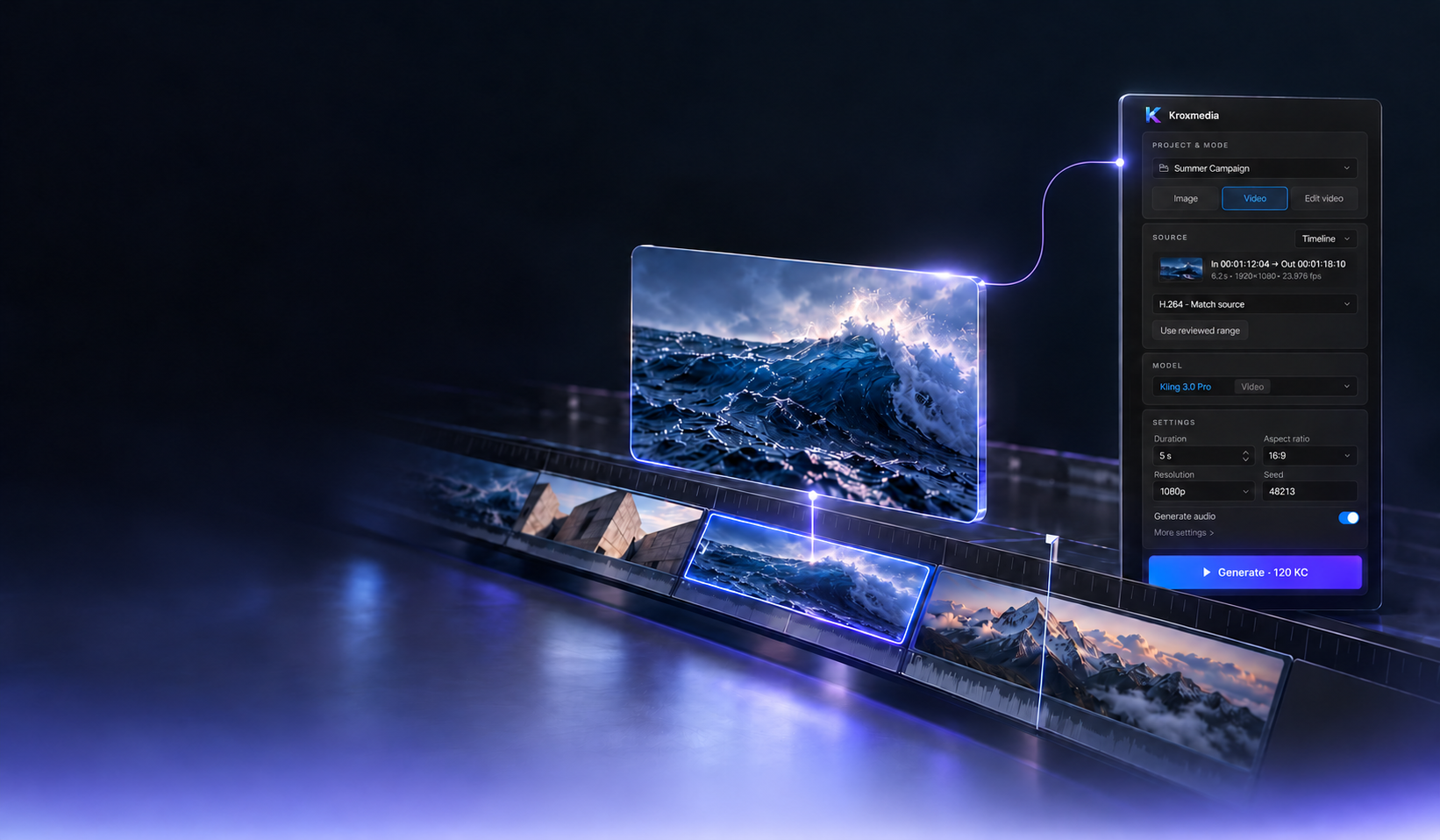
KROXMEDIA FOR PREMIERE PRO
Create beyond the cut.
Bring AI into the place you already work.
Your original cut. Always intact.
STAY IN YOUR CREATIVE FLOW
THE EDIT IS ONLY THE BEGINNING
A new take. A different light. A performance that fits the moment. Bring KroxMedia’s AI tools into Premiere Pro, and keep your creative decisions close to the edit.
01 / THE CREATIVE TOOLSET
Four ways to take a shot further.
All from the place you already work.
A NEW DIRECTIONExplore a new take from your selected clip and a prompt, with KroxMedia’s connected AI models.
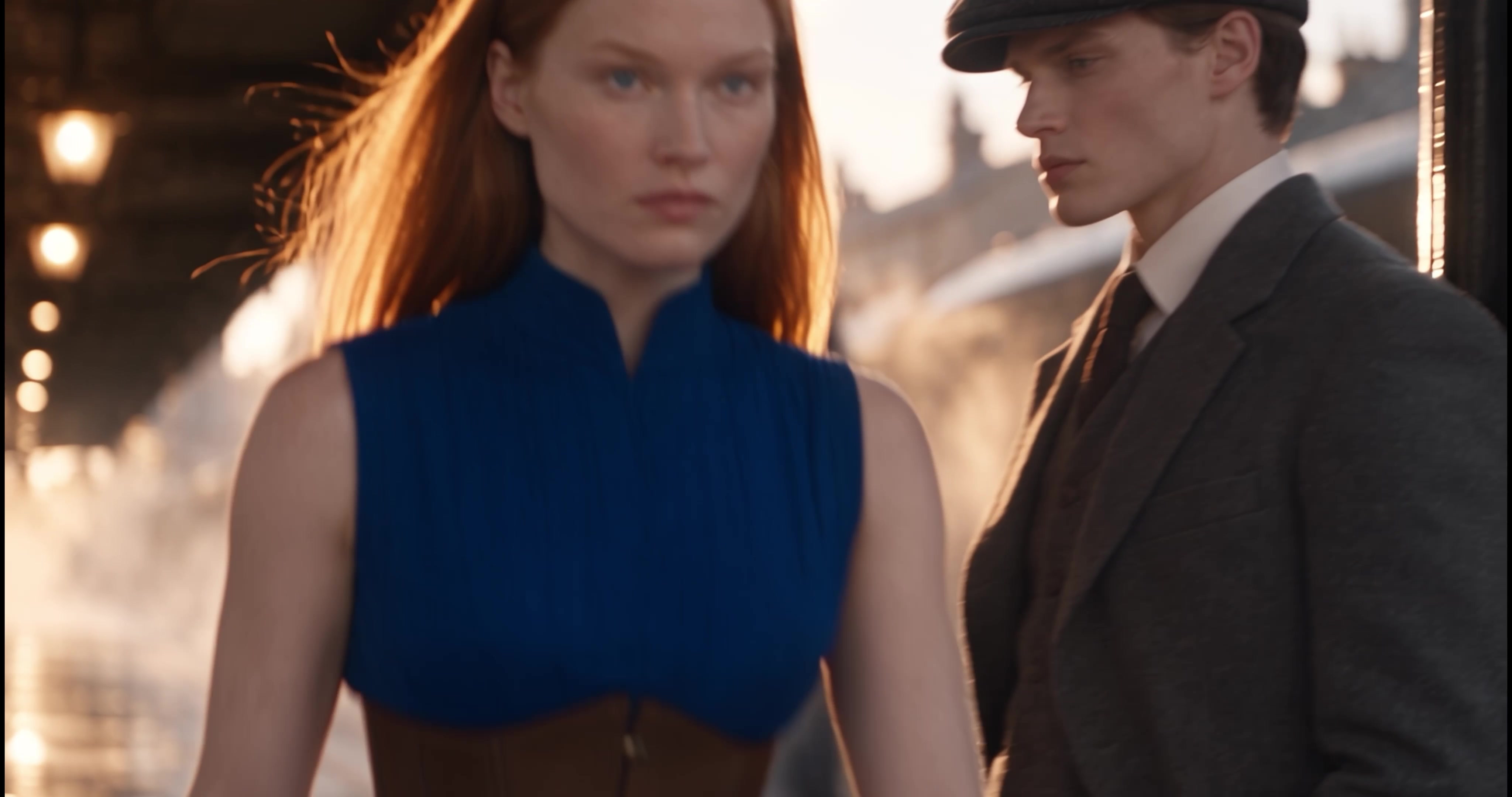
Match a performance to new dialogue. Keep the shot in the context of your edit.

Change the lighting of a shot, while keeping the framing you cut to.
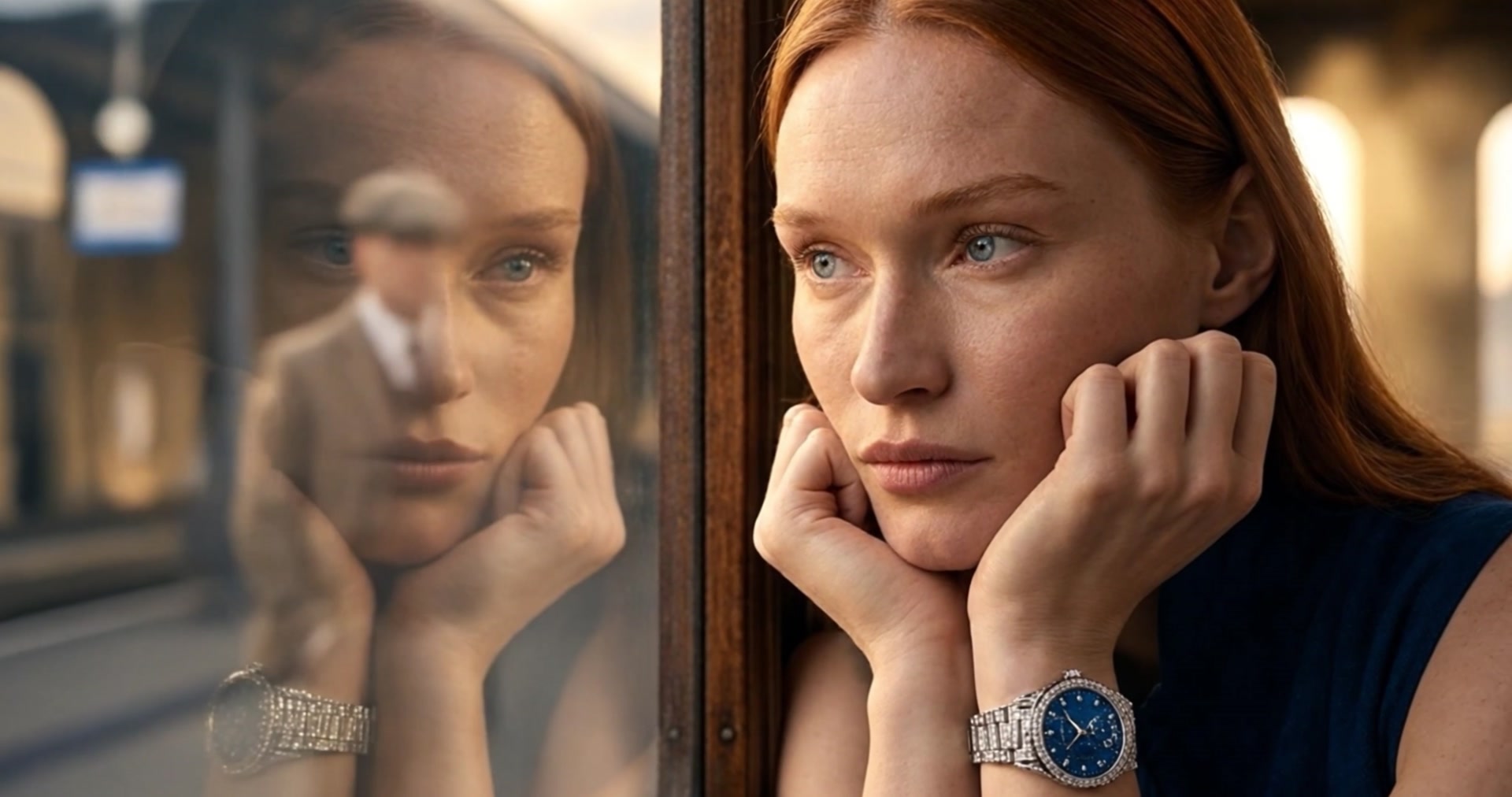
Carry movement from one clip onto another. Explore a different performance.
And there’s more to come. Voice over is on the way.
Creative illustrations. Tool results depend on the selected model and source.
02 / MADE FOR THE WAY YOU WORK
Choose a tool. Keep the context.
Follow each job, without losing your place.
Your creative tools, in one place.
The source, the model and the prompt.
Follow the progress of each job.
Panel design previews supplied by the team. Some tools and interface details shown may be in development.
03 / FROM IDEA TO EDIT
A short path from installation
to your next creative decision.
Close Premiere Pro, install KroxMedia, then open it from Window → Extensions → Kroxmedia.
Use your KroxMedia account. Your projects, models and credits come with you.
Pick a clip, choose the tool and generate. Short clips are padded, then trimmed back to your cut.
The result goes to a free or new track above the source. Your original stays untouched.
04 / YOUR NEXT EDIT STARTS HERE
Download KroxMedia for Premiere Pro.
Bring your account. Keep your workflow.
macOS 12 or later
Premiere Pro 2025 or later
Windows 10 (22H2) or 11, 64-bit
Premiere Pro 2025 or later
The macOS installer is signed and notarised by Apple. The Windows installer is code-signed by KroxFlow Artificial Creative Solutions FZ-LLC. Because the signature is new, your browser or Windows may still ask you to confirm the download; the Windows installation guide shows how.

Generation uses your KroxMedia credits. Results are saved locally so your project keeps its media.
BEFORE YOUR NEXT CUT
The result is placed on a free track above your clip, or a new top track. Your original remains intact.
Use your existing KroxMedia account. The panel uses your KroxMedia credits for generation.
The panel checks for new versions and installs updates while Premiere is idle. You can also check under Settings → Updates.
The installation guide covers the current installers for macOS and Windows.
FROM FIRST IDEA TO FINAL FRAME.